

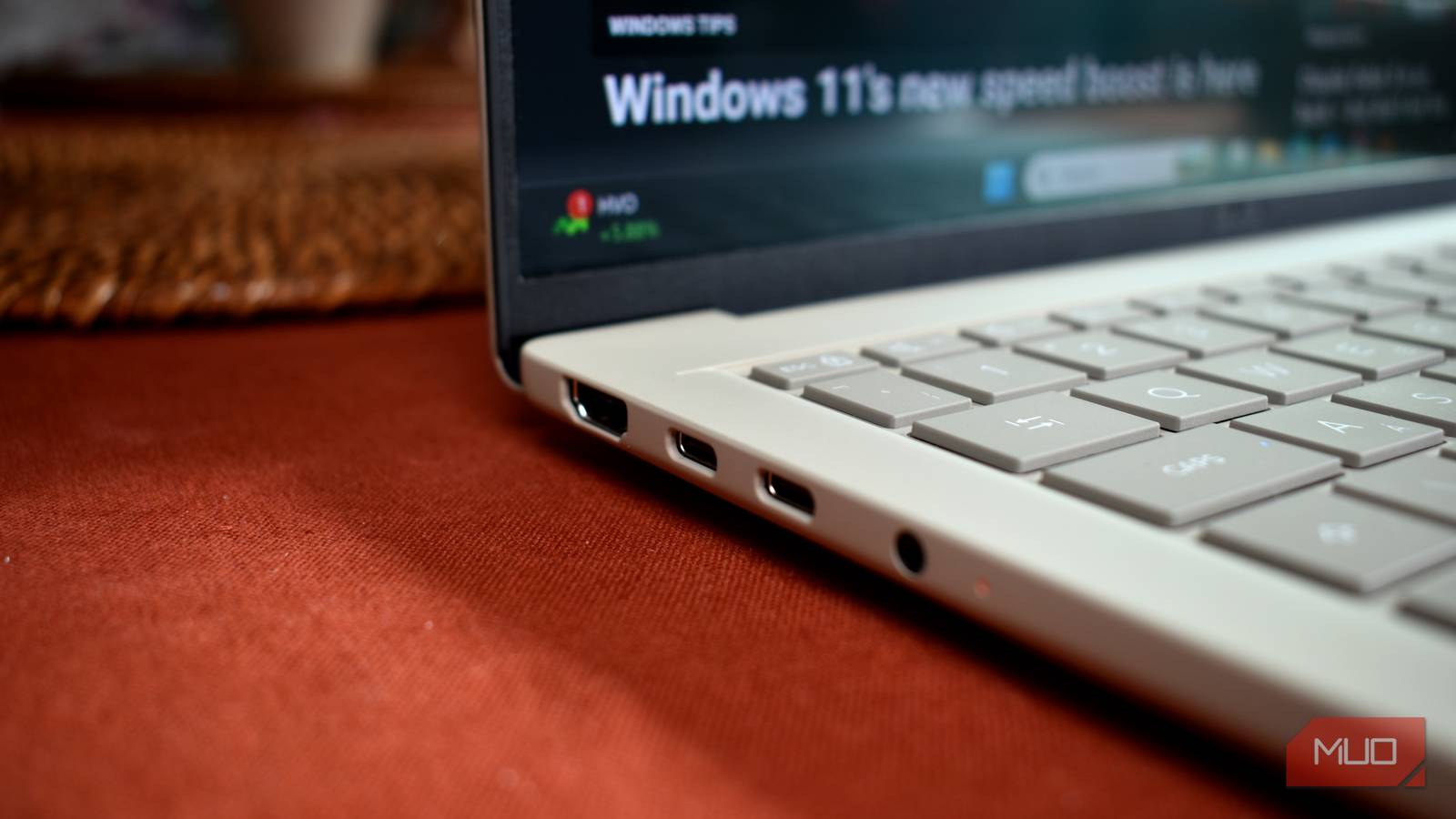
Every PC ships with multiple USB ports, yet most people fall into the habit of using the same two or three without ever examining the differences. If you have never stopped to check why those ports differ, there is a good chance you have been living with far slower file transfers and charging speeds than your hardware can deliver. The problem is not your drive or your device; it is the port you are plugging into.
USB has evolved through many generations since its introduction in the mid-1990s, but not every port on a modern computer supports the latest standard. Manufacturers often mix older, cheaper controllers with newer ones to cut costs. That means a desktop or laptop may feature a USB 3.2 Gen 2 port right next to a plain USB 2.0 port, and they can look nearly identical to the untrained eye.
USB Ports May All Look the Same, But They Aren’t
Stop Using the Most Convenient Port
Unless you are the kind of person who reads manuals for fun, all USB ports on your PC or laptop appear identical. But USB has gone through several generations over the years, and each one brought a significant jump in data transfer speed. Understanding these generations is essential because older standards are still present on new machines.
USB 2.0, released in April 2000, is still everywhere. It tops out at 480 Mbps, which sounds acceptable until you realize USB 3.0 is ten times faster at 5 Gbps. This has real-world consequences. If you plug a modern external SSD into a USB 2.0 port, you will blame the drive for being slow, when the bottleneck is actually the port. The drive may be capable of reading at 1 GB/s, but the port limits it to 40 MB/s or less. The frustration is misplaced.
To make matters worse, the naming conventions for USB have become confusing. USB 3.0 was later renamed USB 3.1 Gen 1, and then USB 3.2 Gen 1. A 10 Gbps port may be called USB 3.1 Gen 2 or USB 3.2 Gen 2, depending on the manufacturer. This inconsistency only adds to the confusion. The speed table below summarizes the major standards and their real-world file copy performance.
- USB 2.0: 480 Mbps theoretical, realistic file copy 30–40 MB/s
- USB 3.0 / 3.1 Gen 1: 5 Gbps theoretical, realistic file copy 100–400 MB/s
- USB 3.1 Gen 2 / 3.2 Gen 2: 10 Gbps theoretical, realistic file copy up to ~1 GB/s
- USB 3.2 Gen 2x2: 20 Gbps theoretical, realistic file copy up to ~2 GB/s
- USB4 / Thunderbolt 3/4: 40 Gbps theoretical, realistic file copy up to ~3 GB/s
While transfer speed is the most obvious difference, it is not the only one. Charging power is another area where USB ports diverge. USB 2.0 ports typically provide only 2.5 watts, enough for a basic keyboard or mouse. USB 3.x ports can deliver up to 4.5 watts, and USB-C with Power Delivery can supply far more. Plugging a phone or earbuds case into a USB 2.0 port will charge it at a painfully slow rate, even if the cable and device support fast charging.
The Wrong USB Port Can Slow Down File Transfers and Charging
The Closest Port Is Rarely the Fastest One
Most PCs and laptops come with at least three or four USB ports scattered across the chassis. Like many people, I used to grab whichever one was most convenient. On a desktop, that meant front-panel ports. On a laptop, it meant the side the cable reached naturally. The problem is that the most convenient port is not always the fastest one.
If you use the faster ports for peripherals like a keyboard and mouse, while plugging storage drives into slower ports out of habit, you are leaving a lot of transfer speed on the table. Two ports can sit right next to each other and still support different generations. One might be USB 3.2 Gen 2 at 10 Gbps, while the other is only USB 3.2 Gen 1 at 5 Gbps. The difference is invisible until you move a large file.
Charging suffers similarly. A USB 2.0 port can charge a modern smartphone at a glacial pace, and the device may not even show a fast-charging notification. USB-C PD ports, which are increasingly common on laptops and desktops, can output 20 watts or more. But if you pick a random USB-A port out of habit, you are not using that capability.
USB-C ports on your PC can vary just as wildly. One USB-C port might support USB4 with 40 Gbps throughput, while another might be limited to USB 3.2 Gen 1 at 5 Gbps. Some newer laptops even include Thunderbolt 5 ports, which offer up to 80 Gbps in certain configurations. You will never notice the difference if you only use the ports for simple tasks. Files copy, devices charge, and everything appears to work. But everything is slower than it needs to be.
Identifying USB Ports Is Easy
Choose Wisely
Understanding USB standards is one thing, but how do you actually identify ports on your PC? There are several reliable methods. The most obvious giveaway is color, though it is not a guarantee.
- White: USB 1.0, 12 Mbps, 2.5W
- Black: USB 2.0, 480 Mbps, 2.5W
- Blue: USB 3.0, 5 Gbps, 4.5W
- Teal or Red: USB 3.1 Gen 2, 10 Gbps, 4.5W
The catch is that there is no universal standard for color coding USB ports. A blue port could theoretically be USB 2.0 if a manufacturer decided to break convention. However, most reputable manufacturers follow these colors, so they are a decent first signal. Red ports on some motherboards also indicate a dedicated charging port that stays powered even when the PC is off.
The second thing to look for is the logo next to the port. A plain USB trident symbol indicates USB 2.0. If the symbol includes the letters SS, it stands for SuperSpeed and indicates USB 3.2 Gen 1 at 5 Gbps. SS+ or SS10 means USB 3.2 Gen 2 at 10 Gbps. Some ports also carry a lightning bolt symbol, which signals support for fast charging. These logos are small but clearly visible if you look closely.
If ports do not have any markings, you can open Device Manager on Windows and expand the Universal Serial Bus controllers section. Every USB port on your system appears in that list, and the name usually tells you the generation. For example, a controller named “USB 3.1 eXtensible Host Controller” indicates support for 10 Gbps ports. This method does not map ports to physical locations, but it confirms what capabilities your system has.
For the most precise information, look up your motherboard or laptop model online. The manufacturer’s specification page lists the number of ports and their standards. This takes only a minute and removes all guesswork. Matching that information with the physical layout of your PC lets you mark the fastest ports with a colored label or just memorize which ones to use.
There is also a practical way to verify your port speed without reading specs. Copy a large file, say 2 GB or more, from an SSD to another SSD connected to the port in question. If the transfer speed stays below 50 MB/s, the port is likely USB 2.0. If it runs at 200 MB/s or higher, you have a USB 3.x port. Tools like CrystalDiskMark can also test sequential write and read speeds, giving you a clear picture of the port’s actual performance.
USB technology has been with us for over two decades, and during that time, the ports on our computers have become faster and more capable. Yet the physical connectors barely changed, especially for USB-A. It is frustrating that manufacturers do not do more to label them clearly. But now you know what to check. Look at the color, look for the SS logo, inspect Device Manager, and check your system’s manual. Once you start using the high-speed ports for storage and charging, the difference is immediate.
Source:MakeUseOf News