

The Frustrating 30-Second Delay
Imagine double-clicking an MP3 file. The VLC media player opens almost immediately, but the audio doesn't start. Instead, you stare at an empty interface, waiting. Ten seconds. Twenty seconds. Finally, after what feels like an eternity, the music begins. This exact problem has been reported by numerous users across the web: MP3s taking 30 seconds or more to load in VLC. The question is why? And more specifically, is Microsoft Defender or VLC itself to blame?
When users encounter a delay that specific and consistent, it rarely points to a faulty hard drive or a corrupted file. It points to a process that actively intercepts the file open request. On Windows, the most likely candidate is Microsoft Defender, the built-in antivirus solution. Its real-time protection scans every file that is accessed, and media files can be particularly taxing to inspect if they are large or located in a monitored folder. But VLC, the open-source media player, is not beyond suspicion either, as it has its own set of caches, plugins, and codecs that can sometimes slow down startup.
How Microsoft Defender Works
Microsoft Defender is the default antivirus program in Windows 10 and Windows 11. It runs continuously in the background, monitoring file system activity. When an application attempts to open a file, Defender's real-time protection scans the file for malware. This process involves reading the file's headers, checking its digital signature, and comparing it against known threat databases. For most small files, the scan is imperceptible, taking mere milliseconds. But for media files that use complex containers or that are stored on a slow disk, the scan can take longer. In extreme cases, users see a noticeable lag before the file is released to the requesting application.
The problem is exacerbated when the file is in a location that Defender treats with higher suspicion. Downloads folder, temporary directories, and network shares are often subject to more thorough scrutiny. Also, if the MP3 file has an embedded album art image or ID3 tags that include uncommon metadata, Defender may spend extra time parsing those structures. While Defender is generally efficient, its behavior can vary depending on system load, disk speed, and the number of active threats definitions.
VLC's Own Startup Loading Process
VLC, the beloved open-source media player developed by VideoLAN, is known for its versatility. It can play nearly every audio and video format, and it does so using a plugin architecture. When you launch VLC and ask it to open a file, the player initializes its core, loads the necessary modules, and then reads the file's metadata to populate the playlist and interface. If VLC is set to fetch album art, the process involves additional network calls and file reads. In some configurations, VLC may also scan the entire directory for other media files, which can cause a delay if the folder contains many files.
Moreover, VLC's cache settings play a role. The player can be configured to cache the entire file before playback, or to use a smaller buffer for streaming. If the cache size is set very high, VLC will read a large portion of the MP3 before starting playback, which over a slow connection or from a hard disk can take a while. However, for a local MP3 file, a 30-second delay is abnormal and suggests something else is at play.
Which One is the Real Culprit?
To determine whether Microsoft Defender or VLC is causing the 30-second delay, users can perform a simple test. First, temporarily disable Defender's real-time protection (via Windows Security settings) and then open the same MP3 file in VLC. If the file loads instantly, Defender is the likely cause. If the delay persists, VLC's settings or the system itself may be at fault. But disabling Defender even temporarily is not recommended for users who handle untrusted files, so a safer test is to add an exclusion for the folder containing the MP3 files.
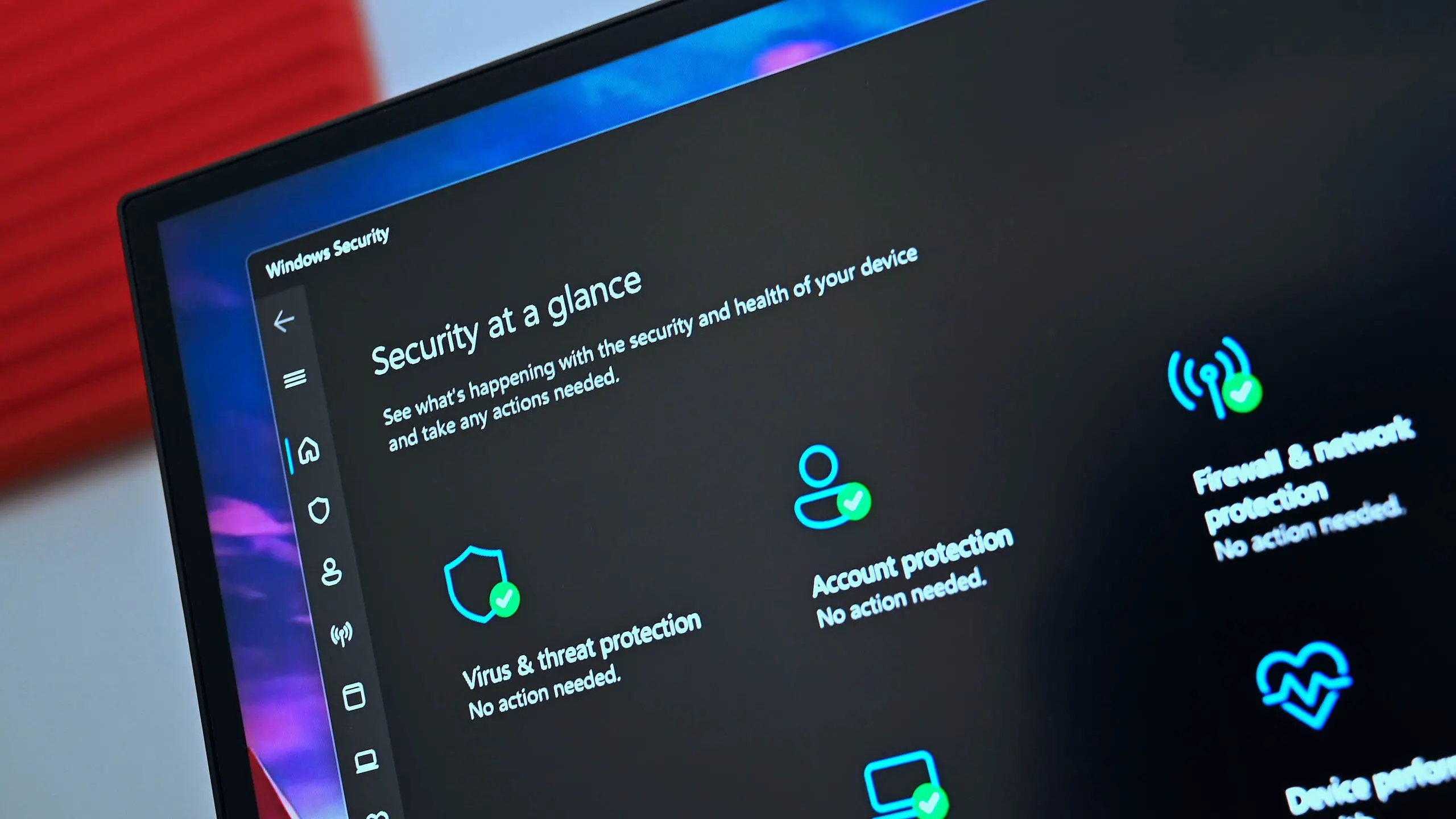
Adding an exclusion in Defender is straightforward. Go to Windows Security > Virus & threat protection > Manage settings > Exclusions, then add a folder or file type. Once the MP3 folder is excluded, VLC should be able to open files without Defender scanning them. Many users report that this completely eliminates the delay, confirming that Defender is the primary cause in their case.
Still, there are instances where VLC is the bottleneck. For example, if VLC is configured to use a large network cache or if it is set to always fetch album art from the internet, the player may wait on a network response. Also, outdated GPU drivers or corrupt VLC preferences can cause initialization delays. A quick fix is to reset VLC's preferences (Tools > Preferences > Reset Preferences) and then test again.
The Broader Picture: Antivirus and Media Playback
This issue is not unique to Microsoft Defender or VLC. Many antivirus products have been known to interfere with media players, causing slow startups or playback stutters. Kaspersky, Norton, and Avast all use real-time scanning by default, and each can introduce latency when opening files. However, Microsoft Defender has a unique advantage: it is deeply integrated into Windows, so it can access low-level file system events, which sometimes makes its scans more intensive than third-party tools.
Conversely, some media players outside VLC also suffer from the same problem. Windows Media Player, Foobar2000, and even iTunes have been reported to lag when opening MP3s on systems with strict antivirus settings. The common thread is that audio files are often scanned more thoroughly because they can embed executable code in metadata fields (a known attack vector). For this reason, security software does not compromise on scanning media files, even if it occasionally causes a 30-second wait.
How to Optimize Both for Speed
If you want to keep both Microsoft Defender and VLC, there are several ways to minimize the delay. First, ensure that your MP3 files are stored in a folder that you trust, and add that folder to Defender's exclusions. Second, disable VLC's automatic album art fetching by going to Tools > Preferences > Metadata > Fetch album art, and set it to "Never." Third, increase VLC's file caching value to a reasonable amount, like 3000 ms, which allows playback to start sooner. Fourth, make sure Windows and VLC are updated to the latest versions, as both have fixed various performance bugs over the years.
Another useful approach is to use VLC's command-line interface to open files with specific flags that bypass certain checks. For example, running vlc.exe --no-metadata-network-access from the command prompt will tell VLC not to access the internet for metadata. This can reduce startup time if the delay is caused by a network hang. Similarly, vlc.exe --no-plugins-cache can disable plugin cache loading, which may help if the cache is corrupt.
In more advanced scenarios, users have found that disabling Defender's "Controlled Folder Access" feature resolves delays, even if the folder is not explicitly protected. Controlled Folder Access is a security feature that limits which apps can modify files in certain folders, and it can add overhead when an app like VLC tries to read a file that is on the watchlist. If you do not need that feature, turning it off can yield a performance boost.
Real User Experiences and Community Reports
On various tech forums, users have shared their own accounts of this phenomenon. One user on a popular Windows subreddit described how every MP3 file took exactly 30 seconds to open in VLC, while other file types were fine. After trying multiple VLC settings, the user finally added an exclusion for their Music folder in Defender and the issue vanished. Another user reported that the problem only occurred when the MP3 was on a network drive, and the delay was caused by Defender scanning the file over SMB protocol, which is notoriously slow for small files.
A notable case involved a user who had disabled Defender's real-time protection and still saw the delay. It turned out that VLC's playlist parser was scanning the entire folder to se if other media files existed, and the folder contained thousands of files. The solution was to change VLC's preference to not recursively scan the directory. This highlights the importance of considering both sides of the equation.
The Role of Disk Speed and System Resources
Hardware also plays a role. On a system with an HDD (hard disk drive) rather than an SSD (solid-state drive), the 30-second delay can be compounded by slow random read speeds. When Defender scans a file, it reads multiple sections of the file, and if the disk has to move its mechanical head to different positions, the latency is high. On an SSD, the scan is much faster, but users on older hardware may still experience a noticeable delay. Additionally, if the system is low on RAM or the CPU is busy with other tasks, Defender's scan will be slower, and VLC will wait longer for the file handle.
Therefore, a comprehensive approach to fixing the issue involves not just tweaking software settings, but also ensuring that your storage subsystem is healthy. Running a disk check and defragmenting an HDD (or using TRIM on an SSD) can improve overall file access times. Upgrading to an SSD is perhaps the most impactful hardware change you can make to eliminate this type of lag.
What About Windows Security Updates?
Microsoft frequently updates Defender's virus definitions and engine, and sometimes these updates introduce changes that affect scanning performance. If you noticed the 30-second delay after a recent Windows update, it is possible that Defender's scanning behavior has changed. Checking the Windows Update history and reviewing the Defender engine version may provide clues. In some cases, you may be able to roll back the update temporarily to see if that resolves the issue, though that is not recommended for security reasons.
Instead, you can submit feedback to Microsoft through the Feedback Hub, asking them to optimize scanning for media files. Microsoft's support team has acknowledged performance issues in the past and has worked on improvements. For instance, in earlier builds of Windows 10, Defender was known to cause slow application launches, and subsequent updates reduced the impact. Similar optimization could come to media file scanning in the future.
VLC's Alternative: Disabling Hardware Acceleration
Another potential culprit within VLC is hardware acceleration. VLC can offload video decoding to your GPU, but for audio files, it might still use a hardware audio decoder that can cause delays. Disabling hardware acceleration in VLC (Tools > Preferences > Video > Output) may help if the delay is related to audio ren& sh. Though this is less common, it is worth trying if you have exhausted other options.
Also, VLC's audio output module can sometimes hang when the audio device is not responding. In that case, changing the audio output from "DirectSound" to "WaveOut" or, on newer versions, "WASAPI" can reduce startup time. This is a niche fix, but some users have reported success with it.
Key Facts and Takeaways
The evidence strongly suggests that Microsoft Defender's real-time scanning is the primary cause of the 30-second MP3 loading delay in VLC, especially when the file is in a folder that Defender monitors closely. VLC's own settings, such as metadata fetching and folder scanning, can also contribute, but the scale of the delay typically points to antivirus interference. The most effective solution is to add exclusions for trusted media folders in Defender. If you prefer not to disable scanning entirely, you can configure VLC to avoid network metadata requests, reduce folder scanning, and increase cache. On the hardware side, using an SSD and ensuring sufficient system resources will further minimize delays.
It is important to remember that antivirus scanning is essential for security, and turning it off is never a good idea unless you are absolutely sure the files are safe. Exclusions are a safer middle ground, as they allow you to skip scans only for specific, trusted content. For those who rely heavily on VLC for media playback, adding the entire directory containing your music library is a pragmatic solution.
Ultimately, the 30-second issue is not a sign that either program is broken, but rather a confluence of security and media playback processes that can be tuned. With the right settings in place, MP3s will load almost instantly, and you can enjoy your music without the waiting game. Whether you choose to adjust Defender, VLC, or both, the fix is within reach and requires no advanced technical knowledge. Test different combinations and find the one that works best for your system.
Source:Windows Central News