

Introduction: A New Chapter for Siri
As an iPhone and Mac user, I've often complained about the many faults and flaws of Siri. That's why I've been anxious to check out the new Siri AI that Apple touted at WWDC 2026 earlier this month. Available by waitlist for supported devices with the 27 developer beta, the new Siri promises to be more conversational, more responsive, and less error-prone. Is that the case? That's what I wanted to find out.
Siri has been a staple of Apple's ecosystem since its introduction on the iPhone 4S in 2011. However, over the years, users and critics alike have pointed out its shortcomings compared to rivals like Google Assistant and Amazon Alexa. With the rise of generative AI, Apple took the opportunity to revamp Siri by integrating advanced language models, similar to what ChatGPT and Gemini offer. The new Siri AI aims to understand context better, handle complex requests, and even perform on-device actions seamlessly.
To try the new Siri, you need to surmount a few barriers. First, your iPhone, iPad, or Mac not only needs to support version 27 of its respective OS but also must support Apple Intelligence. To see which devices fit the bill, check out Apple's official compatibility list. Second, you need to install the developer beta. Since these types of betas can be unstable, I strongly advise installing it on a spare device, not your main or go-to one. I have a spare iPhone 15 Pro and a spare MacBook Air M1 that I use for this kind of testing. Third, you'll have to join a waitlist. For that, go to Settings (System Settings on a Mac), select the setting for Siri, and then tap the button for Turn Siri On. A message will tell you that you'll be notified when the new Siri is available for your device. And then be prepared to wait. I joined the waitlist on my iPhone last week and am still waiting. On my Mac, though, I was able to get access without waiting too long. And that's where I've been trying out Siri AI to see how it performs.
How to Use the New Siri on a Mac
If voice activation is enabled, just say "Hey Siri" or "Siri" and start speaking your request. Alternatively, click the Siri AI app icon on the Dock. The Siri AI app then pops up, letting you type or speak your request. Press the Command key twice, and a small text window appears in which you can type your question to Siri. Press the Command key and the spacebar to launch the familiar Spotlight search window, only now you can search by asking Siri to find something. Right-click on a window or other item, and the pop-up menu includes an option to Ask Siri. These multiple access points make it easy to invoke Siri regardless of your workflow.
To put Siri AI through its paces, I posed general and specific questions, told it to find certain files on my computer, and tried to engage it in back-and-forth conversations. Along the way, I wanted to see if the new Siri could avoid the pitfalls of the old Siri. Keep in mind that this is an early flavor of Siri AI courtesy of the first developer beta, so there are bound to be bugs in it. But Apple still has several months to fine-tune it in time for its expected public release in September.
1. What's New?
First up, the new Siri does work like ChatGPT, Gemini, and other chatbots in many ways. But in contrast, it's less chatty and more direct. Here I started off by asking Siri what's new. Instead of engaging in personal chit-chat, it gave me a rundown of the latest news stories. Clearly, Apple is treating Siri AI more as an intelligent assistant and less like a chat buddy. This is a refreshing change for users who prefer efficiency over small talk.
2. Why Did the Roman Empire Fall?
Next, I gave Siri a general question: Why did the Roman Empire fall? Here, it provided a short explanation that it read to me, followed by a series of bullet-point causes. The response was short, about the same length as I'd get with another AI. Siri also cited the sources it consulted, with links I could open to check them. However, I noticed that the citations were not as comprehensive as those from ChatGPT or Gemini, which often provide more detailed references.
3. What Laptop Should I Buy?
Here, I told Siri that I had $2,000 to spend on a laptop and that I value keyboard quality and battery life more than performance. I asked what I should buy. In response, Siri linked me to a few articles and social media posts about laptops but didn't give me its own opinion or even summarize the information it found. I then asked it to summarize the info and give me its own opinion, which it did. Disappointing at first, but my follow-up question coaxed Siri to serve up a better response. This highlights the need for users to be precise with their queries to get the most out of the AI.
4. Show Me My Appointments
With Siri's ability to find information on your device, I next asked it to show me my appointments for next week. For this, it consulted my calendar and correctly displayed all my scheduled appointments. This is one area where Siri AI shines, as it has deep integration with Apple's ecosystem. It can access Calendar, Reminders, Messages, and more, making it a powerful personal assistant for organizing daily tasks.
5. Find Certain Photos
Next up, I wanted to see if the new Siri could locate specific information. I asked it to find all photos of the statue of Abraham Lincoln in my Photos library. Here, Siri found only three photos, while my library actually contained six photos that matched. I'm not sure what criteria it used to find them or why it missed three of them. I also asked it to find several other photos based on specific details. The problem was the same. It found some but not all. This inconsistency suggests that Apple still needs to refine its visual recognition capabilities.
6. Control Features and Settings on My Mac
As the next step, I wanted to see if Siri AI could control certain features on my Mac. I asked it to turn on Do Not Disturb mode, which it quickly did. I then asked it to turn off Do Not Disturb, and it again complied. Controlling system settings is one of the most useful features of Siri AI, and it worked flawlessly in my tests. I also tried asking it to adjust brightness, open an app, and change volume—all of which succeeded.
7. Analyze a File
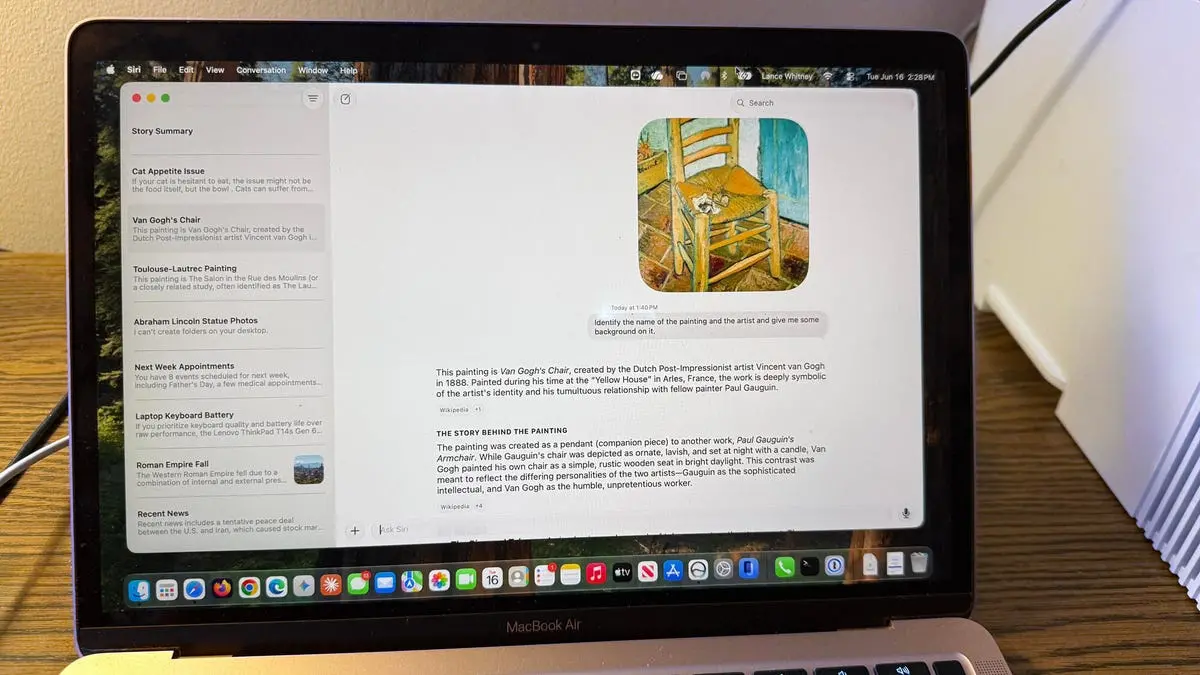
Like most AIs, Siri is able to analyze files that you upload. For this test, I uploaded a photo of a painting by Toulouse-Lautrec and asked it to identify the name and artist and give me some background on it. But here, Siri dropped the ball. It provided the wrong name both for the painting and the artist. I tried again with a different painting. This time, Siri got the correct artist but misidentified the name of the painting. I tried one more time with a different painting, a popular one by Van Gogh. Siri finally got it right. The variability demonstrates the challenges of integrating visual recognition with language models.
8. Provide Advice
Next, I told Siri that my cat Mr. Giggles sometimes won't eat his usual food and I'm not sure what else to try. I asked it to offer suggestions, to which it provided some clear and helpful advice. Siri also asked me whether my cat typically eats wet or dry food. After I responded to that question, Siri provided more information. The info provided was solid, but this type of conversation mode was awkward to use. Instead of Siri keeping the communication open, the AI seemed to stop listening after each response. I had to click the microphone icon each time I wanted to speak. Overall, the chat lacked the back-and-forth fluidity that I've experienced with other AIs.
9. Analyze What's on the Screen
I next wanted to see how Siri would deal with content on the screen. I right-clicked on one of my ZDNET stories, chose the Ask Siri option, and asked it to summarize the story on the screen. Here, the phrasing of my request was key. Initially, I asked it to summarize the story, which it didn't seem to understand. Then I asked it to summarize what it saw on the screen, but for that, it summarized only the text visible on the screen. By finally telling it to summarize the story on the screen, Siri AI was able to provide a concise but helpful summary of all the key points throughout the entire story. Clearly, how you phrase your request makes a difference. This feature is reminiscent of Microsoft's Copilot and Google's Circle to Search, but with deeper system integration.
10. Review and Manage Past Conversations
Finally, Siri AI works like other AI apps in that it keeps track of your conversations and syncs them across all your Apple devices. To test this, I right-clicked a previous chat, triggering a pop-up menu. From there, I could rename the conversation, pin it, open it in a new window, or delete it. I also tried resuming a past chat. Specifically, I told Siri that it was wrong when it gave me the name and artist for a Toulouse-Lautrec painting. The AI tried again to identify it but was still mistaken. I had to tell it that the painting was by Toulouse-Lautrec. Only then was it able to identify the name of the painting and provide background on it. The conversation history management works well, but the AI's inability to correct errors autonomously is a limitation.
The Overall Experience
Overall, I certainly found the new Siri AI an improvement over the old Siri. But I was disappointed by the incorrect or inaccurate answers it gave me. Plus, the back-and-forth conversation was clumsier than it should have been. But again, this is just the initial version of Siri AI in the first developer beta. Clearly, Apple has much more work to do before Siri AI is ready for the public. And, despite the hiccups, I think it's off to a promising start. The foundation is solid, with deep system integration, privacy-focused on-device processing, and the potential to become a true competitor to ChatGPT and Gemini. As Apple continues to refine the model and expand its capabilities, users can expect a more robust assistant in the future. For now, early adopters and developers have a valuable glimpse into Apple's AI strategy.
Source:ZDNET News